How to modify the width and height of the picture or crop the photo at any position
To arbitrarily modify the size of a picture or photo or use any selection as a cropped picture, there are many ways to achieve it, then the following three simple and quick implementations are introduced Modify photo size Crop Image size method.
Use photoshop software
Photoshop is a professional software for processing pictures and designing pictures. It can easily edit and modify pictures.
1. Use ps to modify the size of the picture
First of all, we need to open the PS software, and then drag the picture whose size needs to be modified directly into photoshop to automatically create a new picture canvas.
Imported images or photos can be viewed in the layers panel on the left.
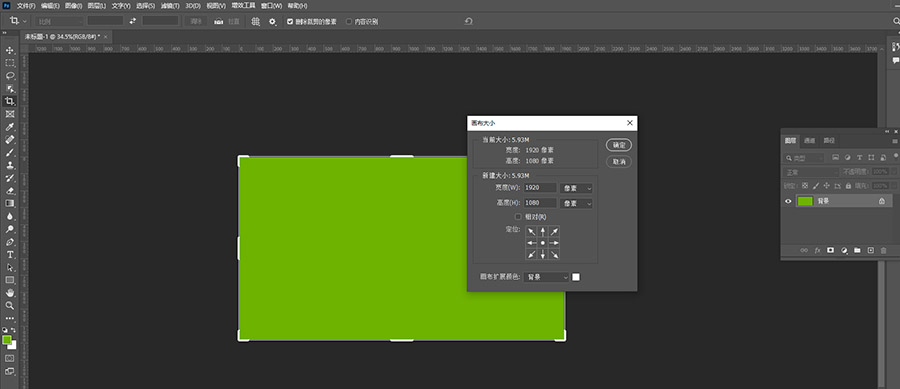
In the panel of the image menu above ps, find "image size"
In the pop-up image size panel, set the length and width to the size you want
Then find Save As in the "File" above, and save the picture with the modified size to the specified folder.
2. Crop the picture with ps
When cropping a picture with ps, similar to modifying a picture, first drag the picture to the ps canvas
In the toolbar panel on the left, find the cropping tool, drag the mouse over the image to draw a cropping selection, and press enter to confirm the cropped selection
Finally, save the cropped image in the ps menu bar and save it.
Second, use the drawing tool that comes with win
1. Draw and modify the size of the picture
Find the drawing software in the win start menu, then select the file, and open the picture that needs to be resized on the computer
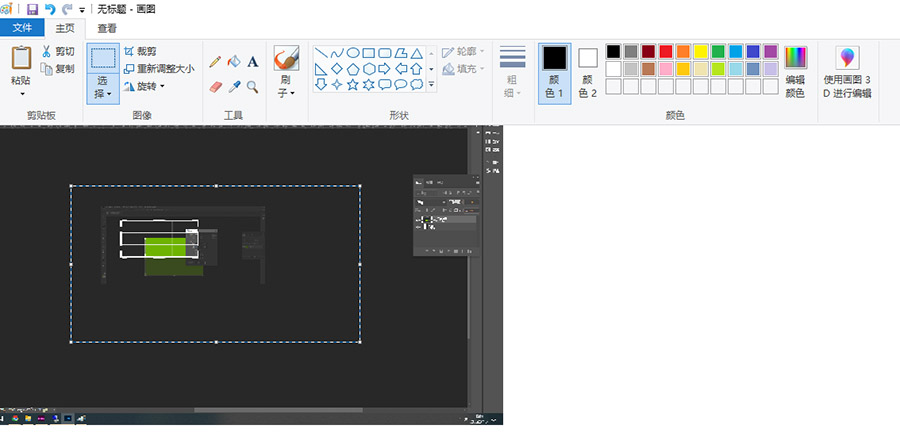
Use the mouse to drag the small box in the lower right corner to adjust the size of the picture, and then select the upper left - file - save as to save the modified photo
2. The drawing software can crop any area of the photo
Same as above, open Paint and open the photo or picture in the File menu or drag it to the Paint canvas.
Find the "Select" option in the home panel next to the file
Select to draw a rectangular selection where you want to crop, and then confirm the "crop" operation in the panel.
After finishing the crop, save as or save directly in the "File" menu to save the just cropped photo.
Use the web tools of this site in the browser
1. Use the picture size modification tool on this site
Select the image you want to resize
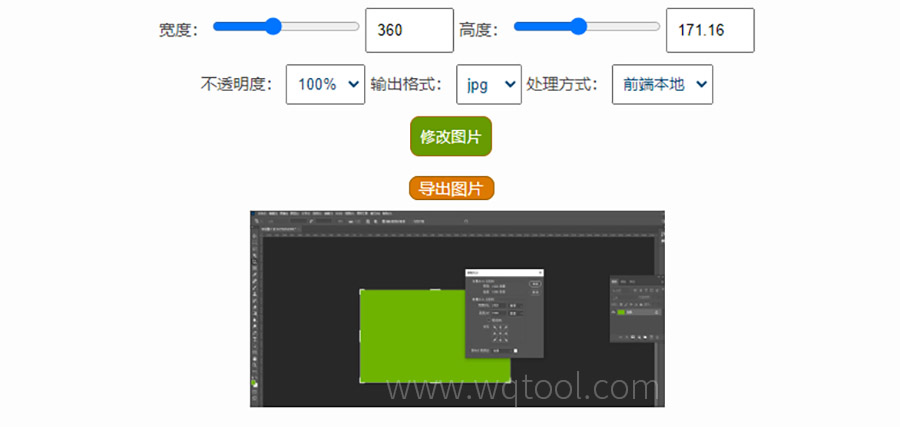
Drag the sliders on both sides of "width" and "height" or directly input the corresponding px pixels to freely adjust the image size on the page.
Set the opacity of the output image, and then select "Modify Image" to quickly modify the size of the photo in the web page.
2. The picture cropping tool on this site can modify the specified area of the cropped picture
First select the picture or photo you want to crop anywhere
In the image preview area of the web page, use the mouse to draw a selection directly on the page to crop the selection into a picture
Photo cropping The tool can not only select common sizes, crop photos to 1-inch, 2-inch, or other commonly used sizes, but also customize the exact length and width, directly drag the slider to dynamically modify the size of the picture and crop area for crop preview.
Finally, select the "Crop Image" button, crop the photo and export the image locally.
The above three methods can quickly modify and crop the size of pictures or photos. As for other methods, there are many other methods. For example, many mobile phone systems have built-in picture editors. Generally, we only need to find and open pictures in the mobile phone gallery or album. There will be an "Edit" option below, select this option to edit and modify the photos or pictures taken, which is very convenient.